Step 1: Installation & Setup
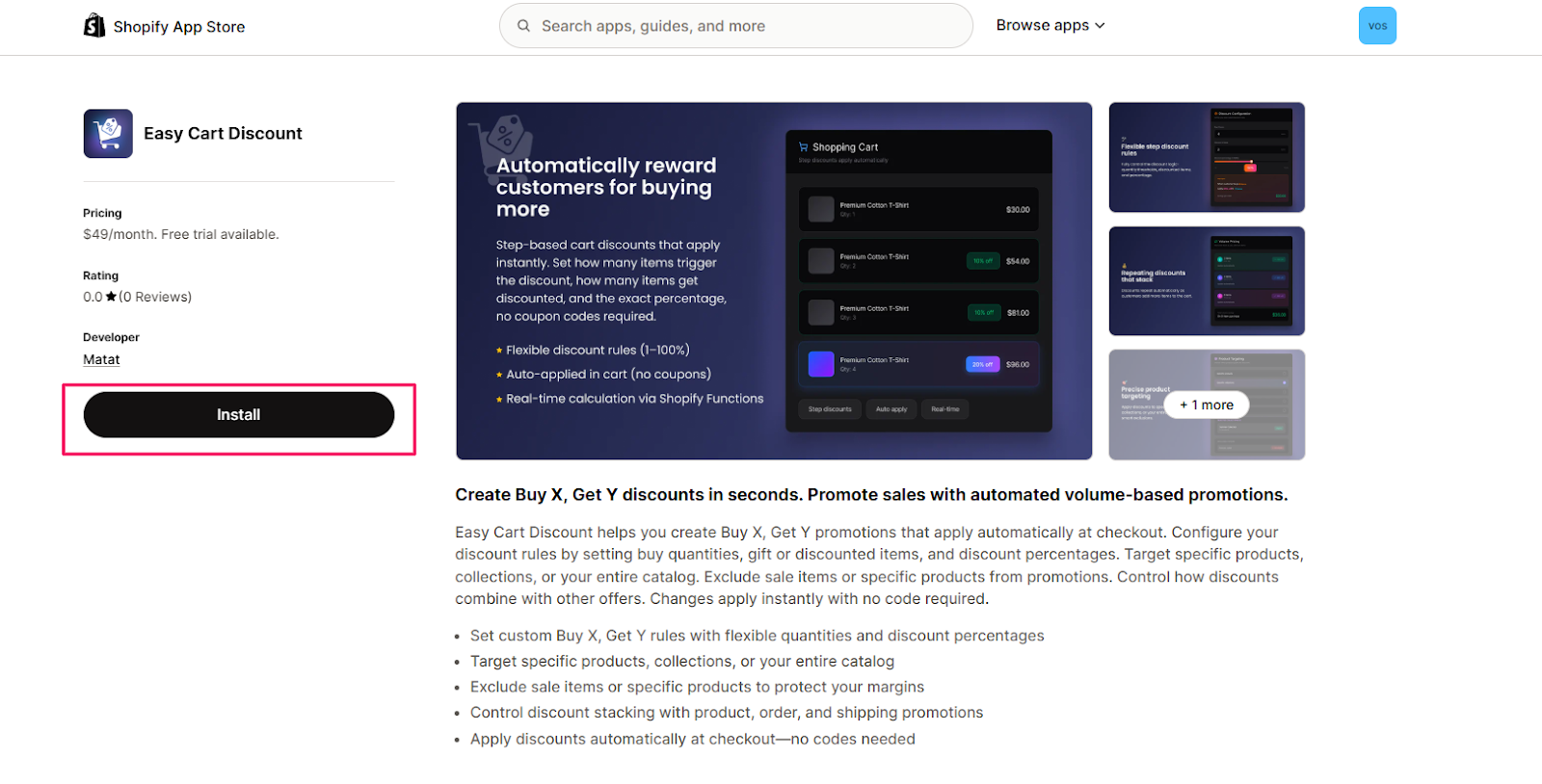
1.1. Open the Shopify App Store
- Log in to your Shopify Admin.
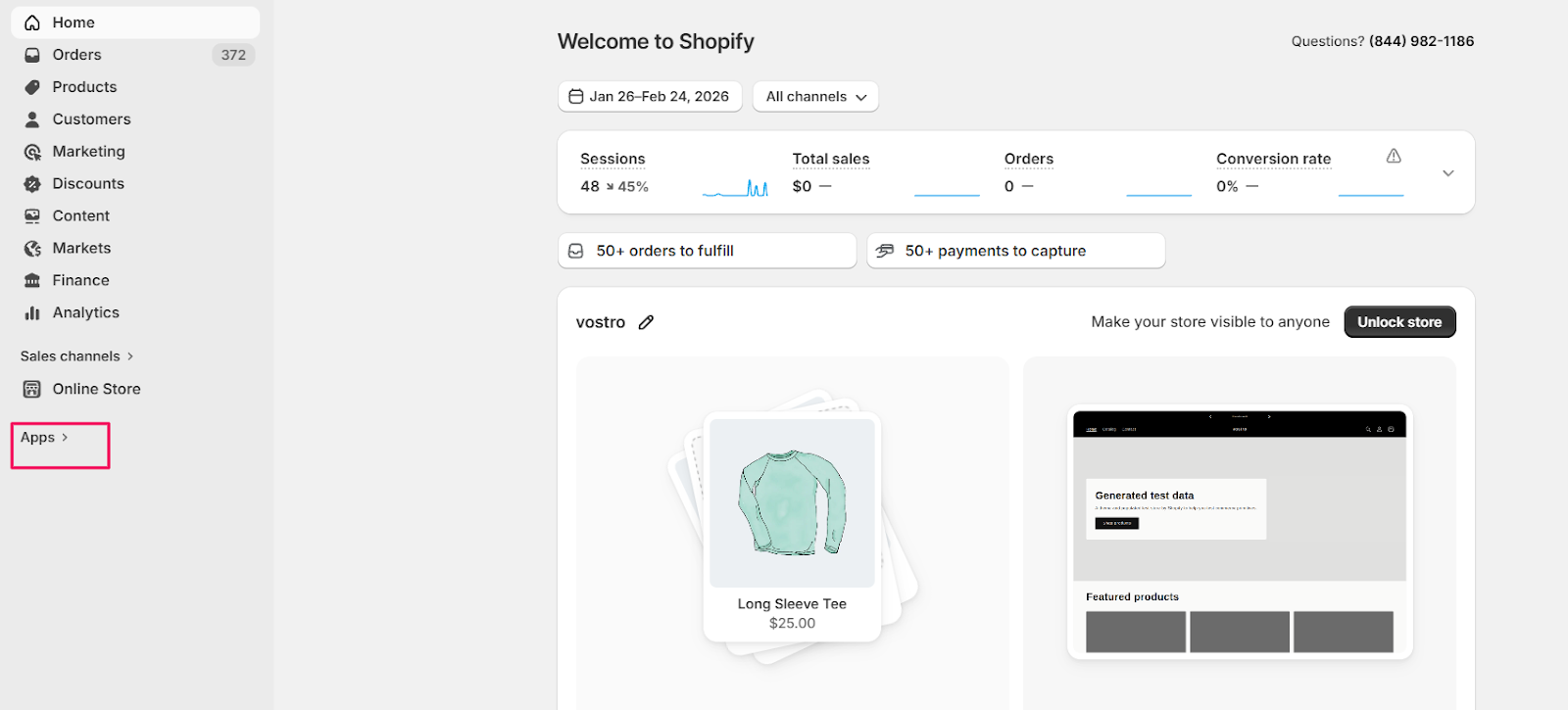
- From the left-hand menu, click Apps.
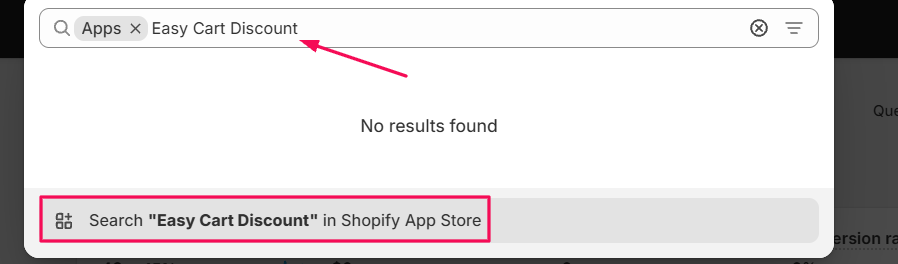
- In the search bar, type Easy Cart Discount.
- Search “Easy Cart Discount” in the Shopify App Store.
1.2. Install the App
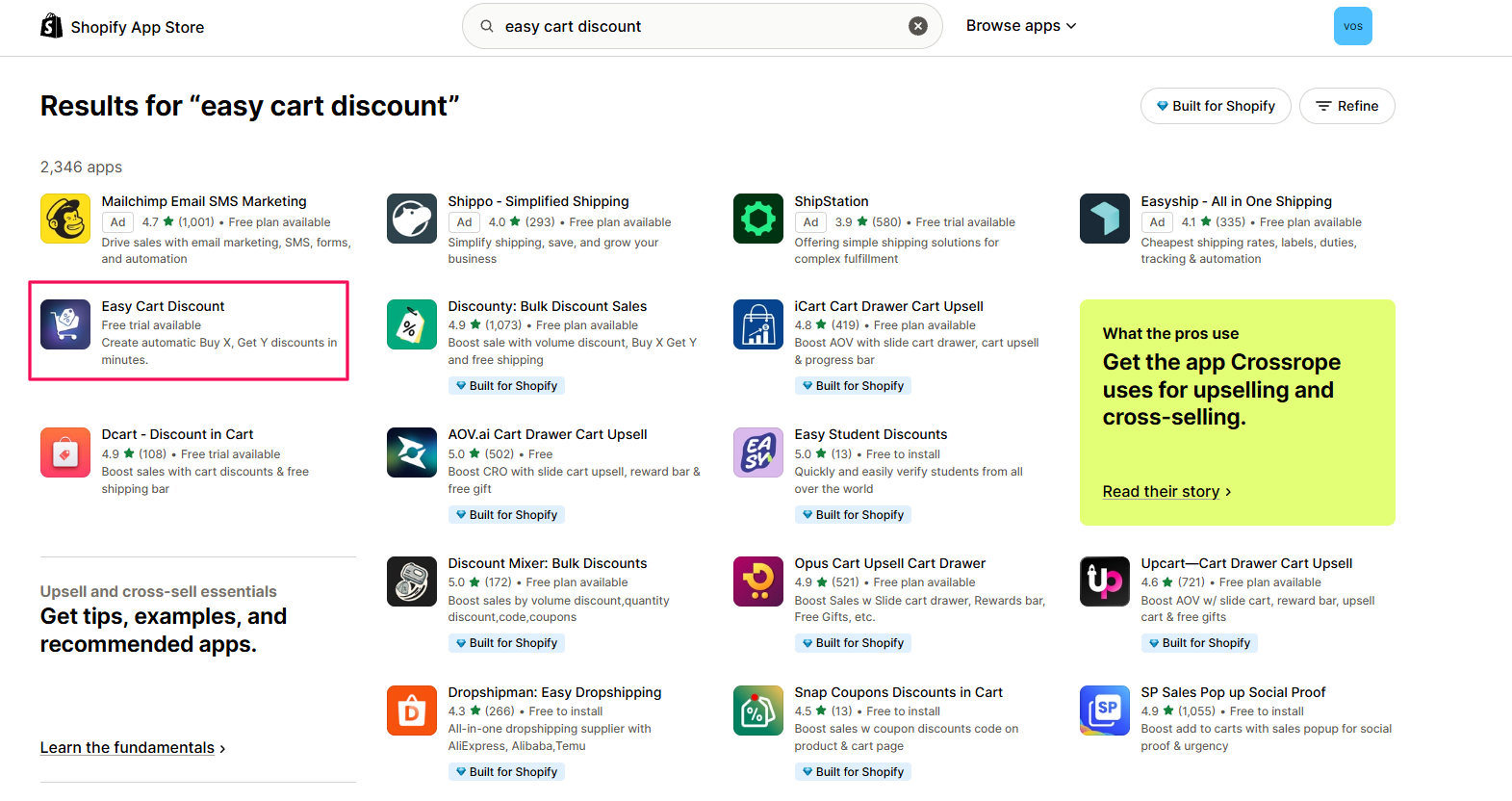
- Select Easy Cart Discount from the search results.
- Click Install app.
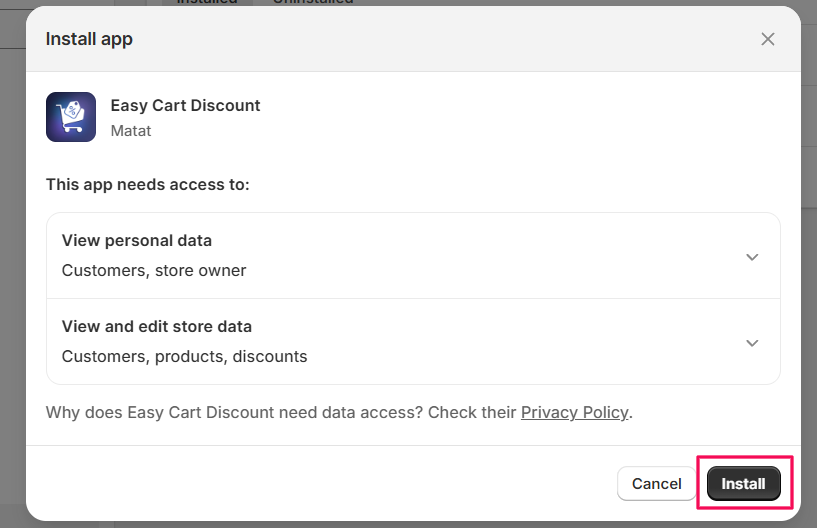
- Review the requested app permissions.
- Click Install to confirm.

1.3. Select a Plan
- Open the Easy Cart Discount app.
- Choose a pricing plan.
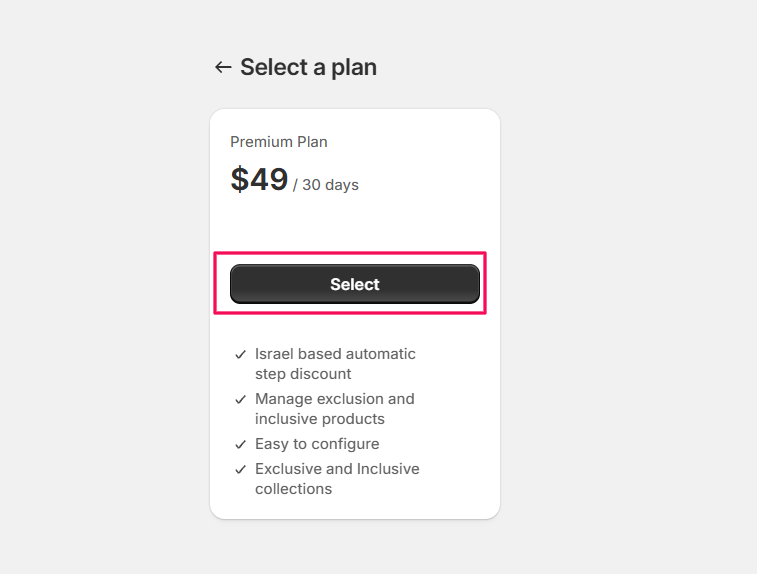
- Review the subscription charges.
- Click Approve to confirm.

Step 2: Creating a Discount
- Open Easy Cart Discount from your Shopify Admin.
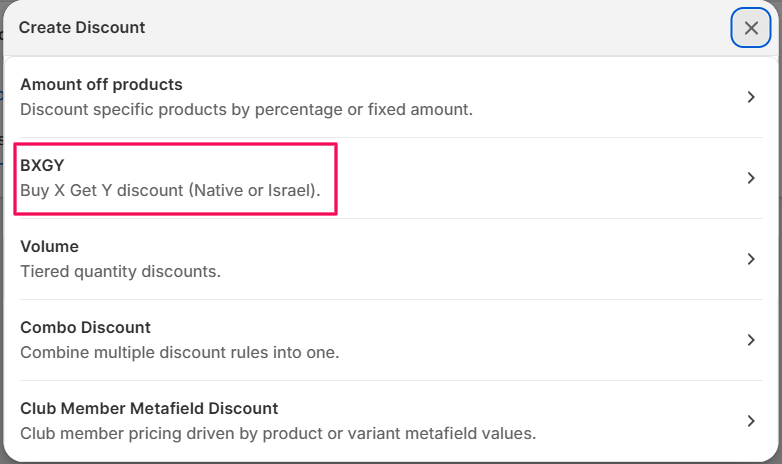
- Click Create Discount.

- Buy 2 Get 1 Free
- Buy 1 Get 50% Off Another Item
- A fixed percentage set in the app
- Custom pricing stored in product or variant metafields

2.1. Amount Off Discount
Select Discount Type
- Select the " Amount Off Products" from the menu.

Enter Discount Details
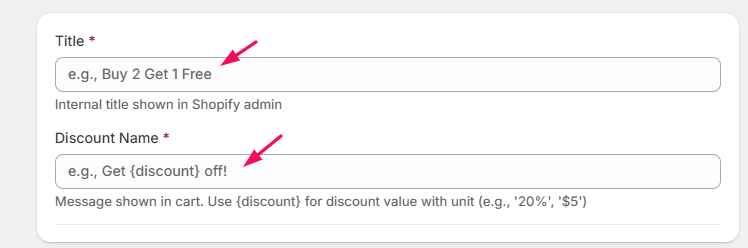
- Enter an internal name for the discount. This name is only visible in the Shopify Admin.

- Enter the message customers will see in the cart when the discount is applied. You can use the {discount}dynamic variable: Displays the discount value with its unit (%, $).

Apply On
- Choose where the discount should apply.

- Available options:
- Specific Products: Select products in the Choose Products field.

- Specific Collections: Select collections in the Choose Collections field.

- Specific Products and Collections: Select both products and collections in their respective fields.

- All Products and Collections: The discount applies storewide. No selection is required.

- All Products and Collections with Exclusion: Select the products and/or collections to exclude from the discount.

Set Discount Value
- Discount Type: Select one of the following:
- Percentage Off
- Fixed Amount Off Each Item
- Fixed Total Amount

- Enter Discount Value
- If Percentage Off is selected, enter the percentage value.

- If Fixed Amount Off Each Item is selected, enter the amount to deduct per item.

- If Fixed Total Amount is selected, enter the total discount amount to apply to the cart.

2.2. Buy X Get Y (BXGY) Discount
- Buy 2 Get 1 Free
- Buy 1 Get 50% Off Another Item
- Spend $100 and get 1 item free
Select Discount Type
- Click Create Discount.
- Select Buy X Get Y (BXGY).
Enter Discount Details
- Enter the internal title and the discount name.
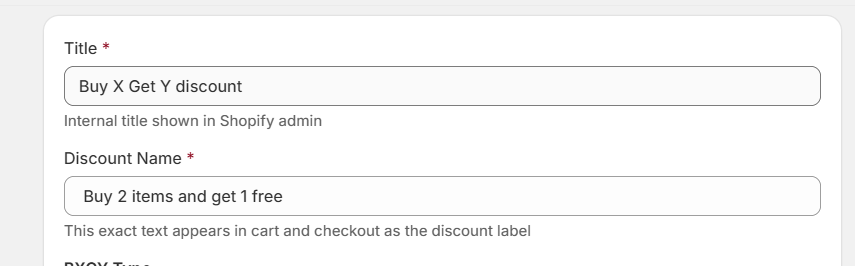
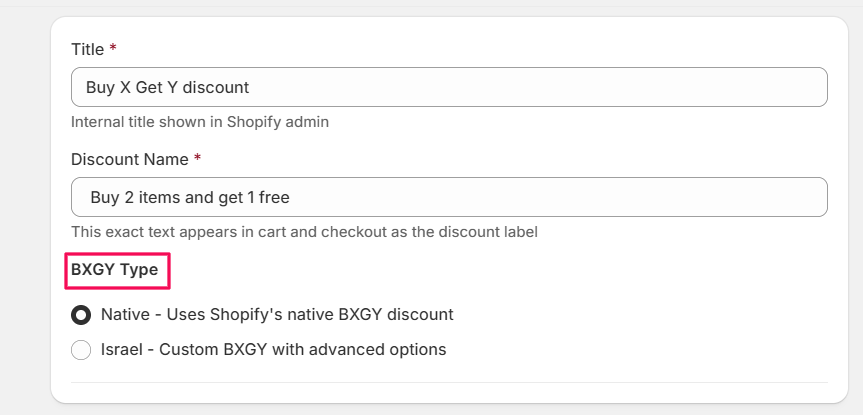
Select BXGY Type
- You must choose one of the following options:
- Native: Uses Shopify’s native Buy X Get Y discount logic.
- Israel: Custom BXGY with advanced options.
- Option 1: Native BXGY
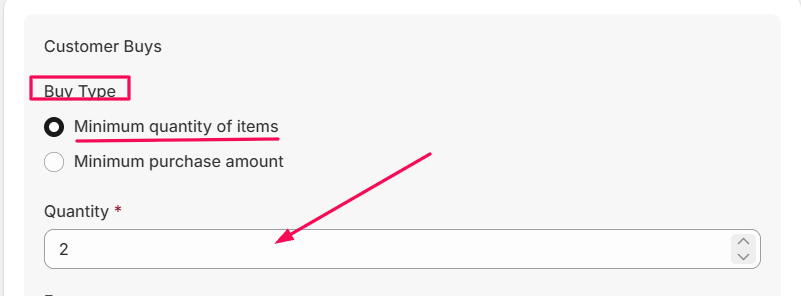
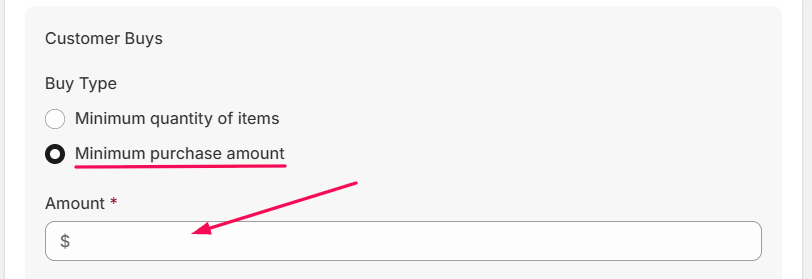
- Buy Type: Choose the qualification method:
- Minimum quantity of items: Enter the required quantity in the Quantity field.
- Minimum purchase amount: Enter the required amount in the Amount field.
- From: Select where the qualifying purchase applies:
- All products
- Specific products
- Specific collections
- Specific products and collections
- All products with exclusions
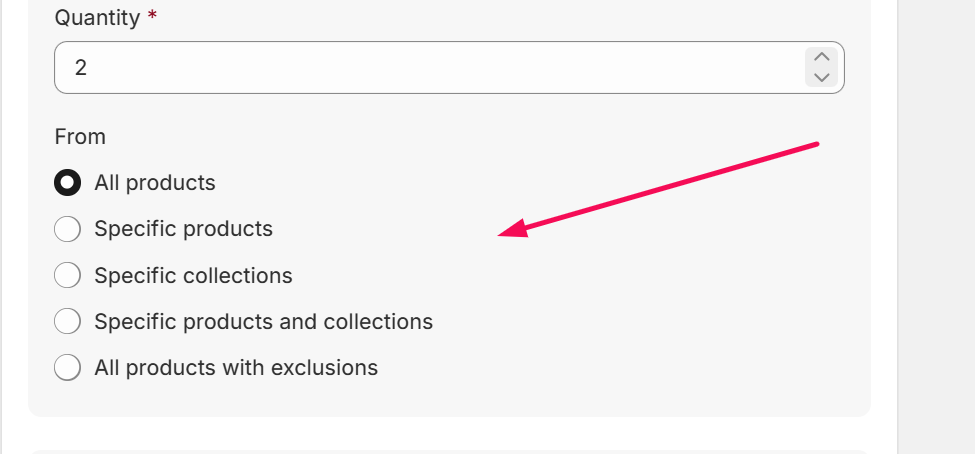
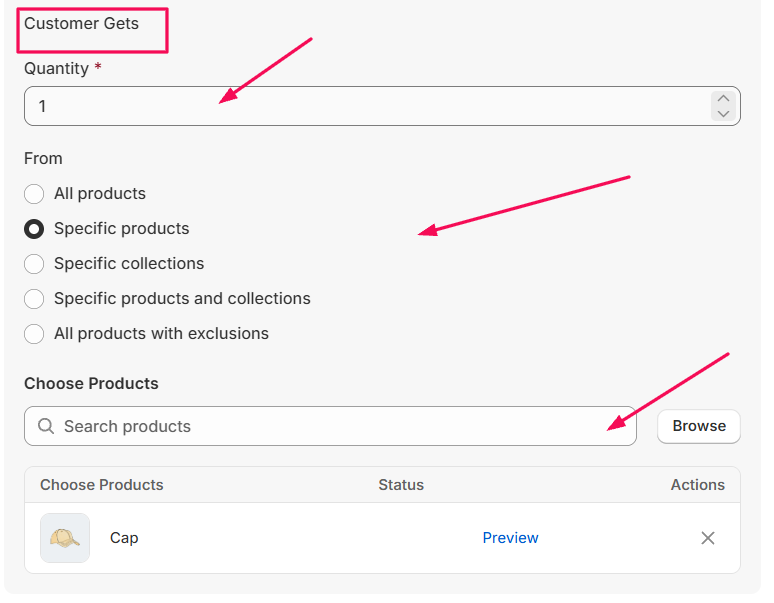
- Quantity: Enter the quantity the customer will receive.
- From: Choose where the reward item applies:
- All products
- Specific products
- Specific collections
- Specific products and collections
- All products with exclusions
Example 3: Buy 2nd Item at X% Discount; Specific Collection / Product Selection; All Customers
- Usage Limits
- When enabled, the discount repeats as many times as the cart meets the requirements.
- When disabled, the discount applies only once per order.

Example 2: Gift with Purchase (GWP); Spend over [100 ILS], receive a gift (or selection of gifts); BOGO for Club Members Only
- Apply On: Choose where the promotion applies:
- Specific products
- Specific collections
- Specific products and collections
- All Products and Collections
- All Products and Collections with exclusion

- Buy Quantity: Enter the quantity customers must purchase to qualify.
- Get Quantity: Enter the quantity of customers who will receive the discounted rate.

- Discount Percentage: Enter the percentage discount to apply to the rewarded items. This percentage discount will be applied to the “Get Quantity.”

- Apply Discount To: Choose how the discount is calculated:
- Lowest priced items first: Discount will be applied to the cheapest item first.
- Highest priced items first: Discount will be applied to the most expensive item first.

- Usage Limits
- When enabled, the discount repeats as many times as the cart meets the requirements.
- When disabled, the discount applies only once per order.

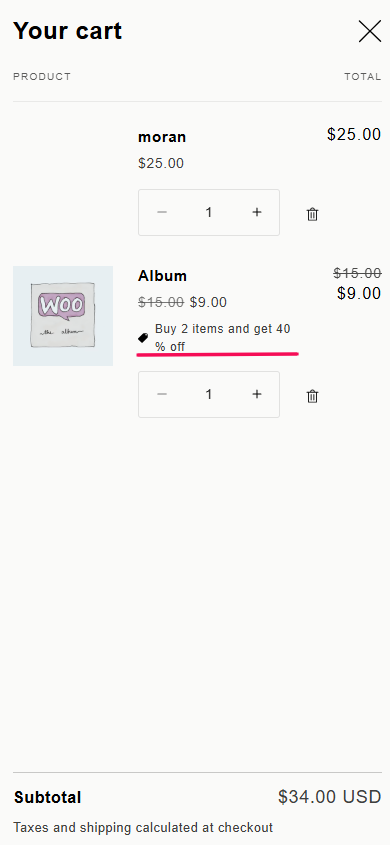
2.3. Volume Discount
- Buy 2+ items and get 10% off
- Buy more items and unlock higher discounts
Select Discount Type
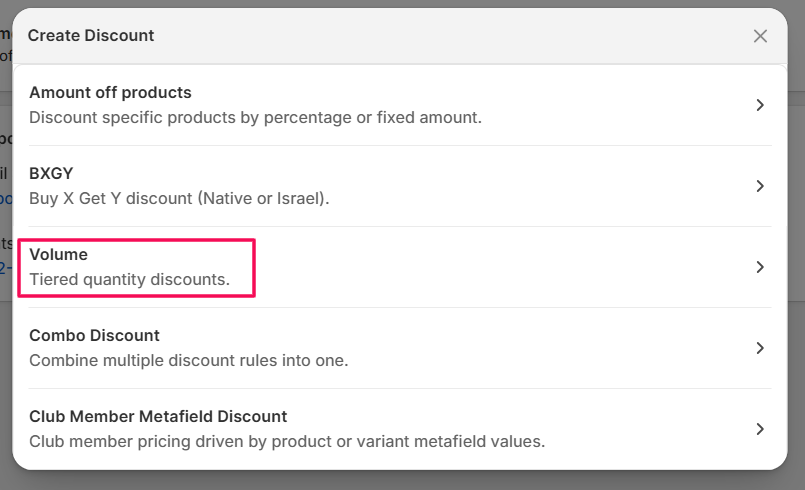
- Click Create Discount and select Volume Discount.
Enter Discount Details
- Enter the title and discount name in their respective fields
Apply On
- Specific products
- Specific collections
- Specific products and collections
- All Products and Collections
- All Products and Collections with exclusion
Volume Discount Mode
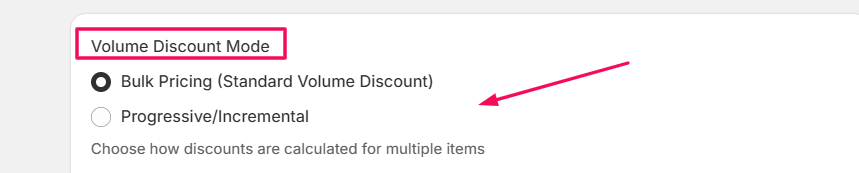
If Bulk Pricing is Selected:
- Configure quantity-based discount tiers.
- Customers must purchase a minimum quantity to receive the discount.
- Configure the following:
- Min Qty – Enter the minimum quantity (e.g., 2).
- Max Qty – Enter maximum quantity or leave as No limit.
- Discount Type – Select Percentage off.
- Discount % – Enter the percentage value (e.g., 10%).

- Click Add Tier to create additional quantity tiers with higher discounts.

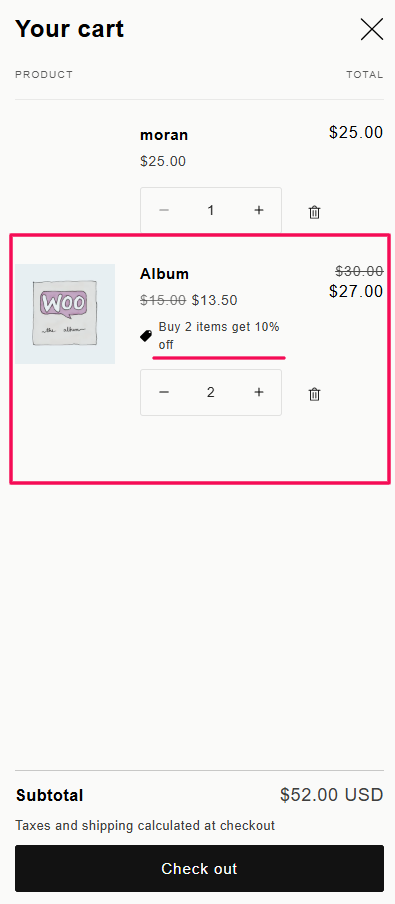
Example 2: Tiered Quantity Discounts (Volume Pricing); 20% discount when purchasing 12/20/40 units of Product X
Example 3: Fixed Bundle Pricing (e.g., 6 for 100 ILS); Fixed price for a specific quantity.
If Progressive / Incremental is Selected
- Items are sorted by price (highest to lowest).
- Each item receives a discount based on its position.
- Configure the following:
- Start Position – Enter the starting item position (e.g., 1).
- End Position – Enter the ending position or leave as No limit.
- Discount Type – Select the discount type
- Discount % – Enter the discount value (e.g., 10%).
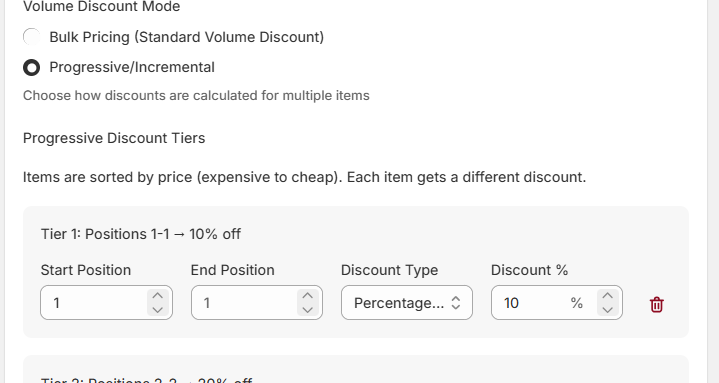
- Click Add Tier to configure additional position-based tiers.

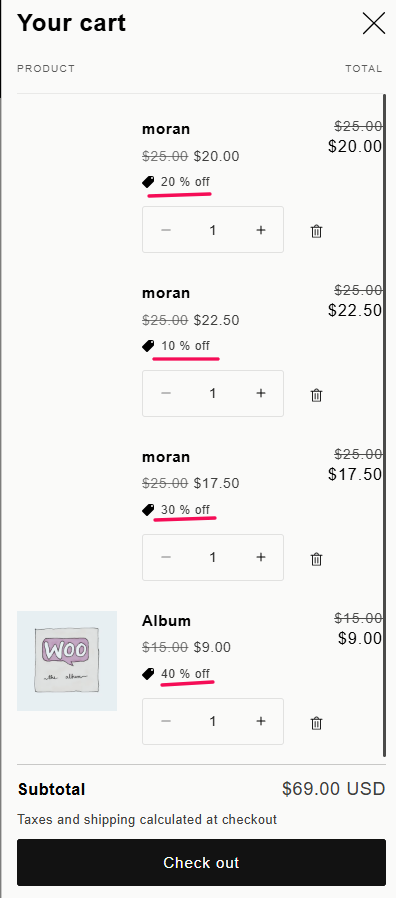
2.4. Combo Discount
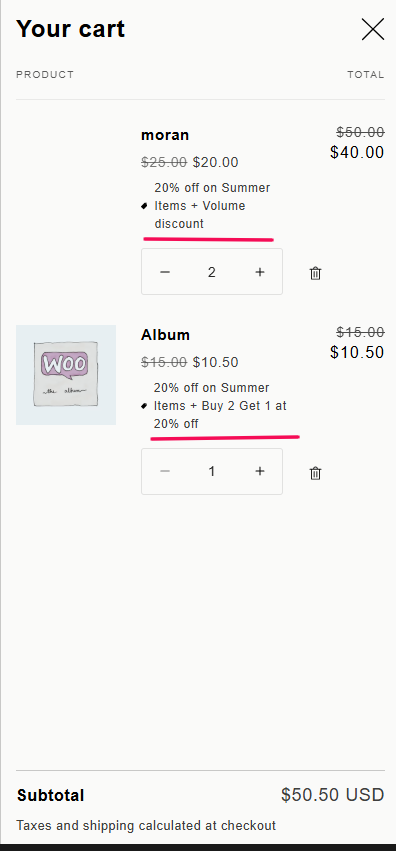
- Use the Combo Discount to configure multiple discount rules within a single promotion.
- All configured rules will be applied together when their conditions are met.
- This is useful for running advanced promotions that combine multiple discount types into a single offer.
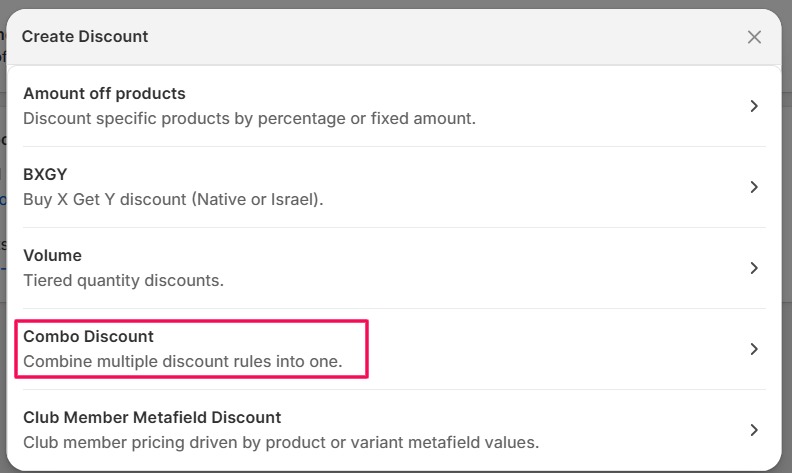
Select Discount Type
- Click Create Discount and select Combo Discount.
Enter Discount Details
- Enter an internal name and a discount name.
Configure Discount Rules
- Combo Discount allows you to configure multiple rules inside one discount.
- Click Add Rule to create a new rule.
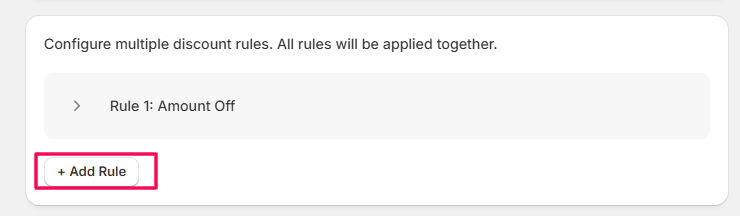
- After clicking Add Rule, configure the following:
- Rule Name (Optional): Enter a name for internal reference. Example: 20% Off Summer Items. (This is only visible to store admins.)

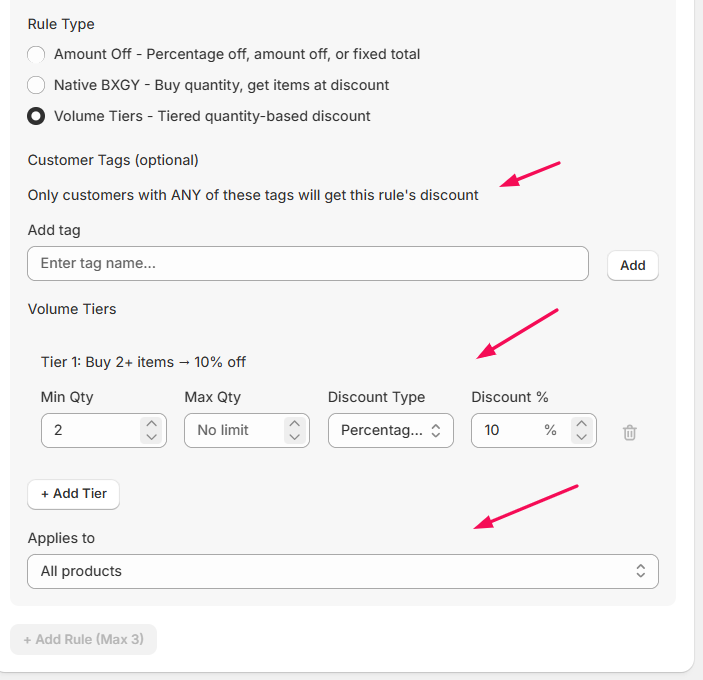
- Rule Type: Select one of the following rule types:
- Amount Off: Percentage off, amount off, or fixed total discount
- Native BXGY: Buy quantity and get items at a discount
- Volume Tiers: Tiered quantity-based discount
- Rule Type: Select one of the following rule types:

Rule 1: Amount Off:
- Only customers with ANY of the entered tags will receive this rule’s discount.
- Click Add Tag and enter the tag name.

- Discount Type: Select Percentage Off, Amount off, or Fixed total Amount as the discount type.

- Discount Percentage: Enter the discount value depending on the option you chose.

- Applies To: Choose where this rule applies. Available option:
- All products
- Specific products
- Specific collections

- Use the Search Products field to find and select products.
- Selected products will appear in the product list table.

Note: If you chose All products, the rule will be applied to all the products; if you chose Specific products, the rule will be applied to selected products, and if you chose specific collections, the rule will be applied to selected collections.
- Now, click Add Rule to add more rules. You can create additional rules within the same Combo Discount. All rules operate together under the same discount
Rule 2: Native BXGY
- Only customers with ANY of the entered tags will receive this rule’s discount.
- Click Add Tag.
- Enter the tag name.

Customer Buys
Buy Type
- Minimum quantity of items
- Minimum purchase amount

- Any Items From: Choose where the qualifying items come from:
- Specific products
- All products
- Specific collections
- Use the Search field to find and select the products or collections if you choose specific products or specific collections.
- Selected products will appear in the product list table.

Any Items From: Choose where the rewarded items come from:
- All products
- Specific products

Note: You can apply the Combo discount, combining three different discount types (rules), or use them separately as per your store's preference.
Rule 3: Volume Tiers
- Only customers with ANY of the entered tags will receive this rule’s discount.
- Click Add Tag.
- Enter the tag name.
- Min Qty – Enter the minimum quantity required (e.g., 2).
- Max Qty – Enter the maximum quantity or leave as No limit.
- Discount Type – Select the discount type (e.g., Percentage off).
- Discount % – Enter the percentage value (e.g., 10%).
- Click Choose Products.
- Use the Search Products field to find items.
- Add the products that should be eligible for this rule.
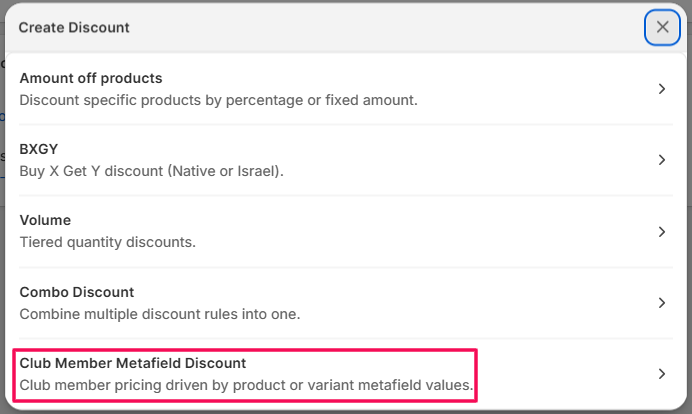
2.5. Club Member Metafield Discount
- A fixed percentage set for all tagged members, or
- A custom price read directly from a product or variant metafield.
Select Discount Type
- Click Create Discount and select Club Member Metafield Discount from the options.
Enter Discount Details
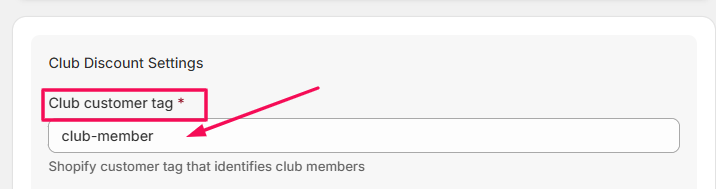
Club Discount Settings
- Only customers with this tag will receive the club discount.
- Club Discount: Apply a fixed percentage to all eligible club members.
- Metafield Price: Read the special club price directly from a product or variant metafield.

Option 1: Club Discount
- Club Discount Rate: Enter the percentage discount to apply to all eligible products for tagged customers.

Note: If you choose the Metafield price, you can directly configure the following settings.
- Product Metafield Source: Define where the app should read promotion configuration from:
- Namespace: custom
- Key: promotion_info

- Expected Product Metafield Structure:
- Field Explanation:
- isClubDiscount: Enables club discount pricing for the product.
- promotionActive: Enables quantity-based promotions.
- promotionType: Defines whether the discount is percentage-based or fixed.
- quantityDiscounts: Defines tiered discounts based on minimum quantity.

Option 2: Metafield Price
- Product Metafield Source: Define where the app should read promotion configuration from:
- Namespace:custom
- Key:promotion_info
- Expected Product Metafield Structure:
- Discount Type: Set discountType in the product metafield to one of the following:
- FIXED_TOTAL_PRICE: clubPrice is the final price the club member pays. Example: Regular ₪100, clubPrice ₪75 → ₪25 off
- FIXED: clubPrice is a fixed amount deducted per item. Example: clubPrice ₪20 → ₪20 off regular price
- PERCENTAGE: clubDiscountPct is the % discount for club members. Example: clubDiscountPct 15 → 15% off
- Discount: regular price × clubDiscountPct / 100 (e.g. clubDiscountPct 15 → 15% off)

Step 3: Common Steps
3.1. Combinations
- Choose whether this discount can be combined with other discounts.
- This discount can be combined with:
- Product discounts
- Order discounts
- Shipping discounts
- Select the options that align with your promotion strategy.

3.2. Customer Eligibility
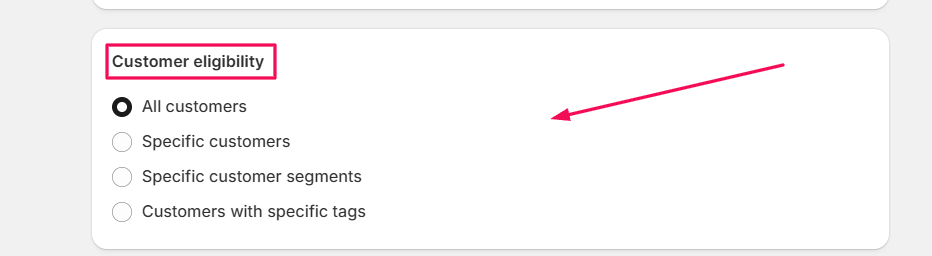
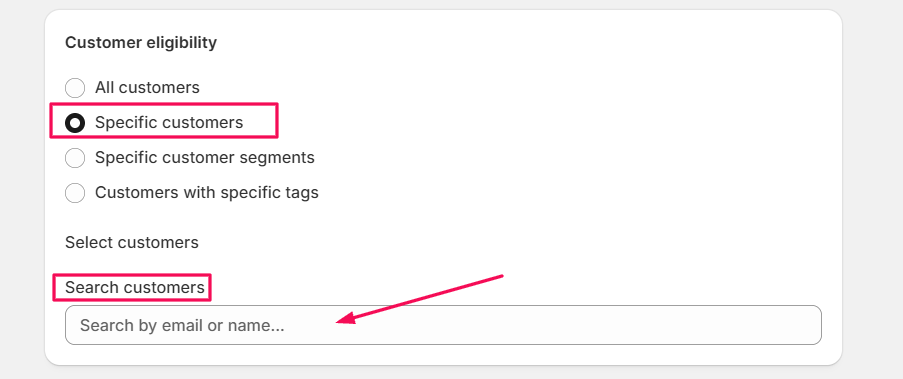
- All Customers: The discount is available to everyone.
- Specific Customers: Select individual customers using the search bar.
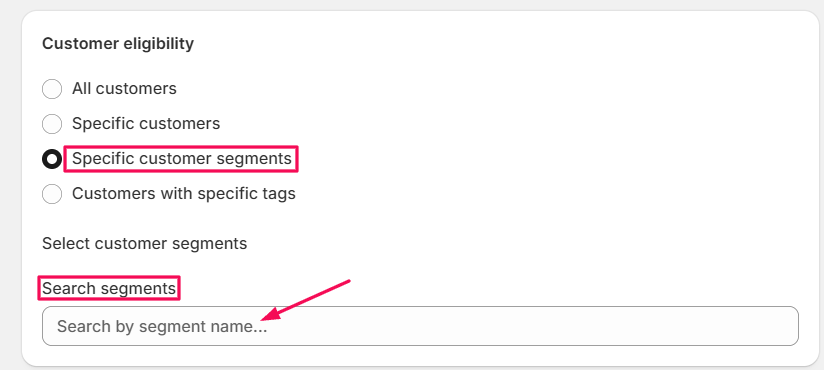
- Include Customers with Tags: Choose one condition:
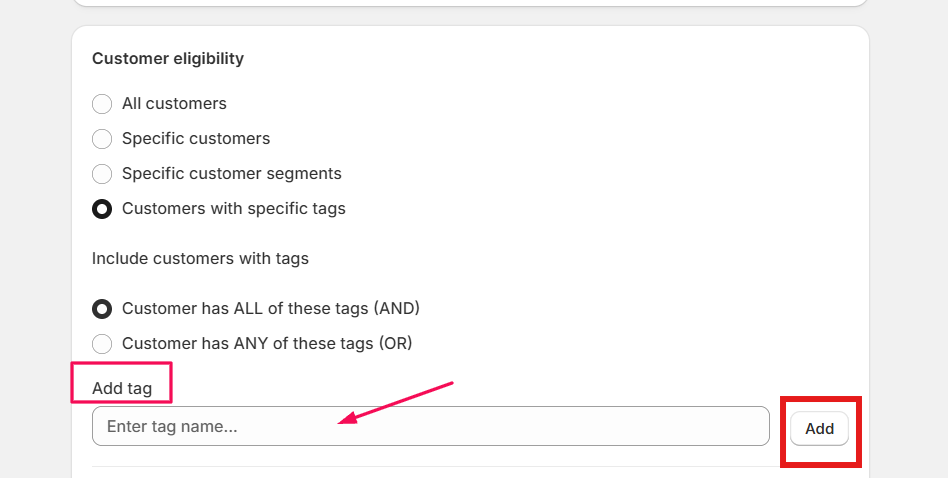
- Customer has ALL of these tags (AND)
- Customer has ANY of these tags (OR)
- Click Add Tag and enter the required tag name, then click Add.
- Include Customers with Tags: Choose one condition:
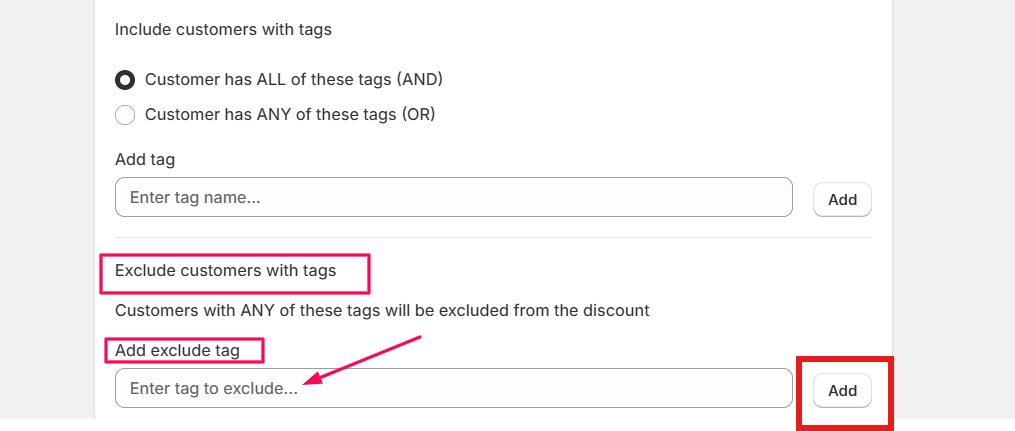
- Enter the tag you want to exclude and click Add.
Example: Member-Exclusive Product Discount; Club Members Only (Tag-based)
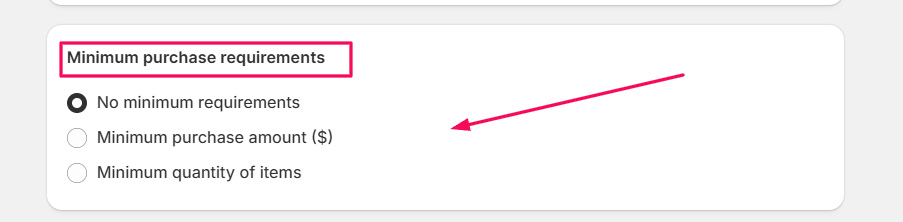
- Define the conditions customers must meet to receive the discount.
- No Minimum Requirements: The discount applies without conditions.
- Minimum Purchase Amount: Enter the required cart spend amount.
- Minimum Quantity of Items: Enter the minimum number of items required in the cart.
Example: Spend Threshold Discount (Upsell); Spend over [100 ILS], get [Product Z] for [50 ILS] (Regular price: 100 ILS); Minimum Purchase Amount
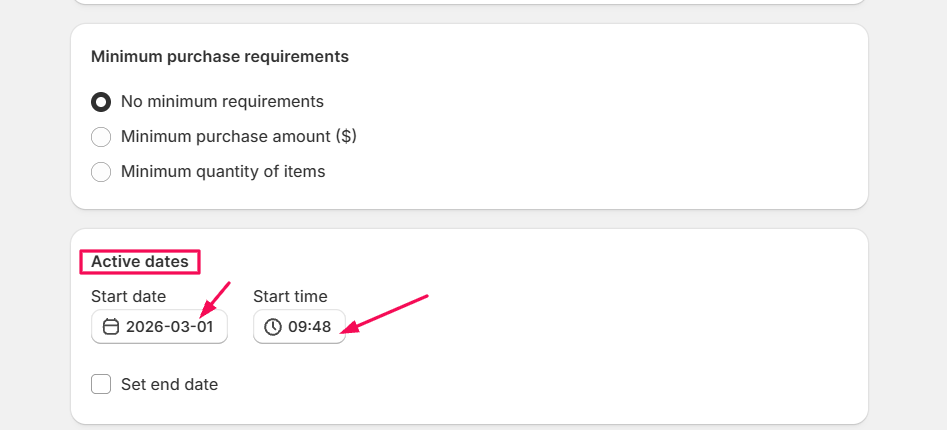
3.4. Active Dates
- Set when the discount will be available.
- Start Date: Select the start date.
- Start Time: Set the start time.
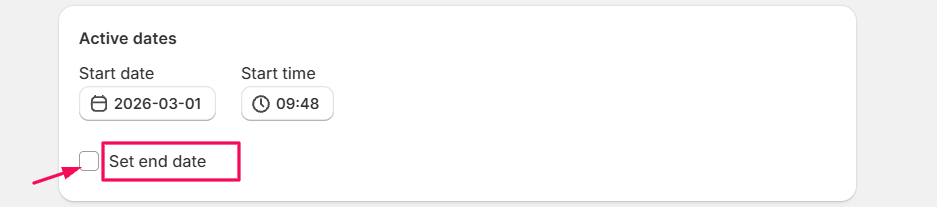
- To schedule an end date:
- Enable Set End Date.
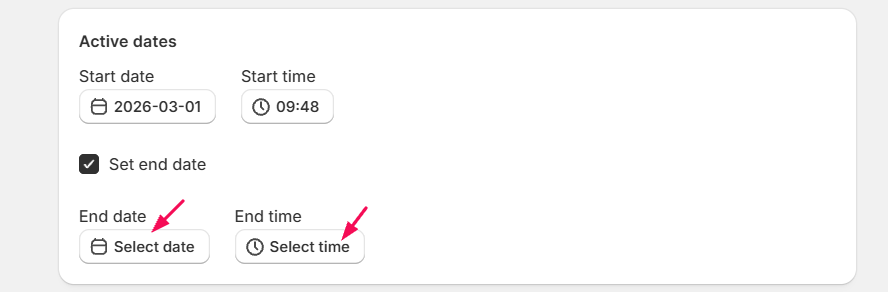
- Select the End Date.
- Set the End Time.
Step 4: Save the Discount
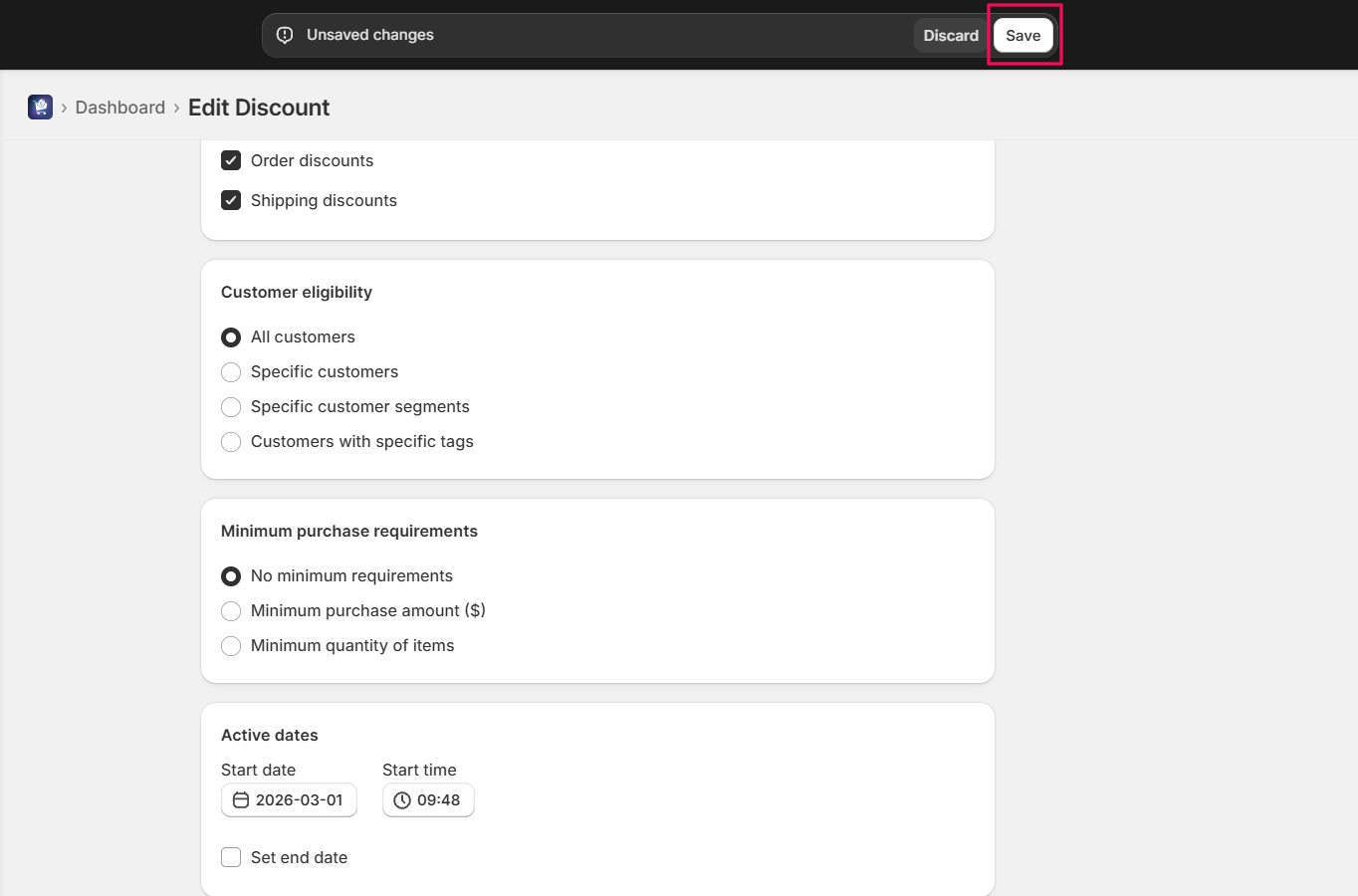
- After completing all settings, click Save.